An Introduction to Channel EQ
By Aaron Shippey | Jun 09, 2026
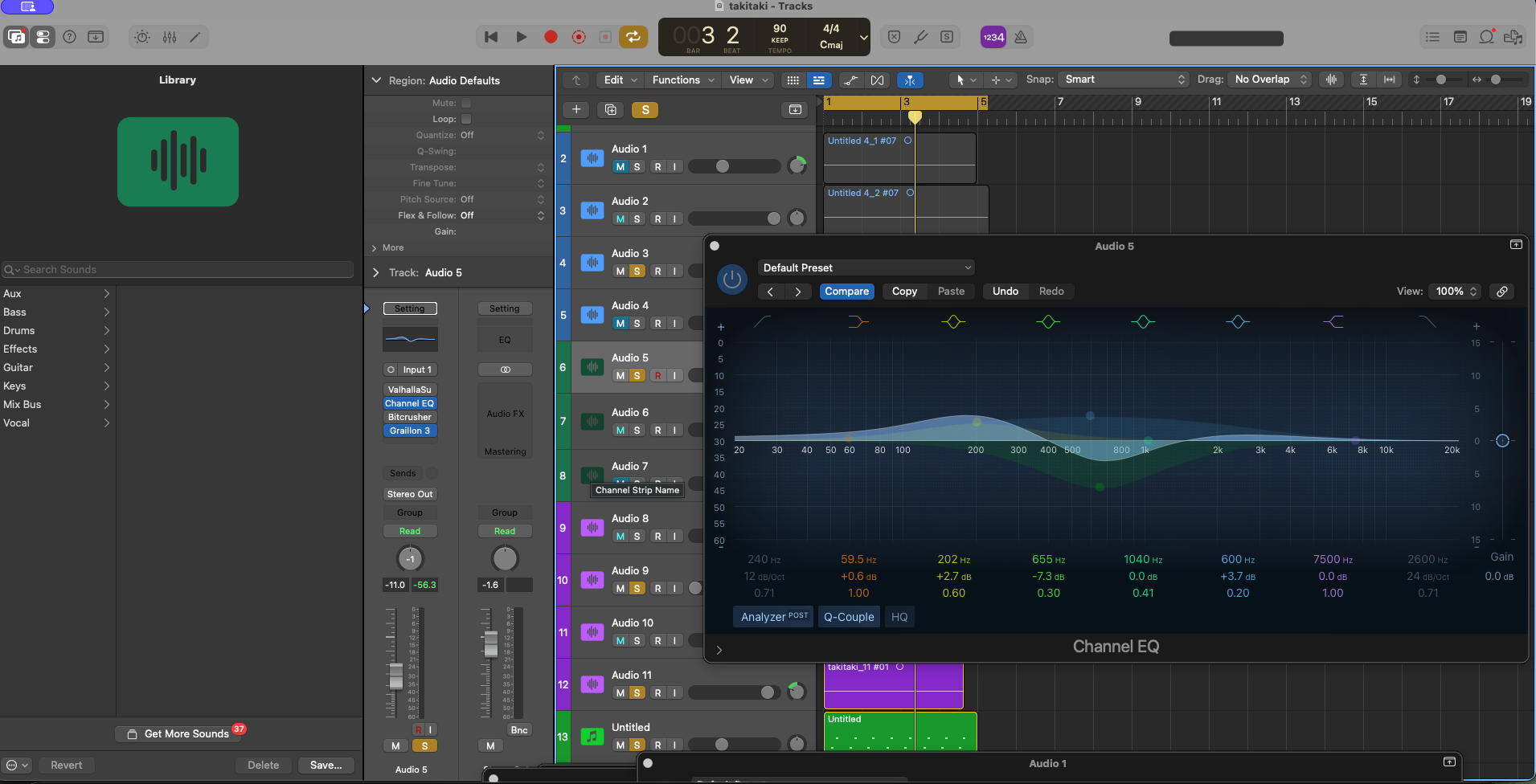
Channel EQ is a multiband EQ plugin with low and high cuts, lo and hi shelves, and four bell filters. Channel EQ comes configured with many presets if you want to work quickly whether it be hats, vocals, keys, synths and horns.
Channel EQ vs Linear Phase EQ
Logic’s Channel EQ and Linear Phase EQ have very similar interfaces, displays, analyzers, and workflow features. The main difference is the filter technology: Channel EQ uses minimum-phase filters, while Linear Phase EQ uses linear-phase filters that preserve phase relationships. What this means is you can preserve more frequencies, but it can also cause smearing.
A key benefit of minimal phase EQ is it’s low-latency, CPU-efficient, and musically natural-sounding due to its minimum-phase design, making it ideal for fast everyday mixing.
Filter Types: Left to right
The Low Cut (High-Pass) Filter is the filter all the way to the left.
Next to that is the Low Shelf Filter, which boosts or cuts the low frequencies without removing them completely.
In between the low shelf and the high shelf filters are all four bell filters. These are all colored and correspond with the colors in the control panel at the bottom of the display.
On the far right is the High Cut (Low-Pass) Filter, which removes frequencies above the cutoff point and can be used to reduce harshness, hiss, or excessive brightness.
Just to the left of that is the High Shelf Filter, which boosts or cuts the high frequencies without removing them completely.
Channel EQ’s Graphic Display
One of Channel EQs best features is its graphic display UI. It’s very easy to see what you’re doing versus just tweaking eq knobs. You can adjust each eq band by clicking and dragging on the display or go to the parameters and you can click and scroll up on your mouse.
Because the bell filters can cut or amplify any frequency, they are the most dynamic, allowing you to drag the filter anywhere on the spectrum.
The graphic display is my favorite feature of channel eq. I have been using it to help me learn eq filters better.
Lately I’ve been practicing EQ with a saw wave. I’ve been cranking up the release in the amp envelope to get a long tail that keeps the harmonics sustained while I use Channel EQ’s graphic display to see where the EQ is in the actual frequency space. For me, this helps EQ feel less abstract and more tangible.
At the bottom are the controls for frequency, gain, and q value.
You’ll also find the Analyzer control. This is for a real time analysis so users can verify visually that what you’re hearing is what you think. The Analyzer uses FFT(Fast Fourier Transformation) to analyze your audio. The higher-frequency regions of Channel EQ’s analyzer contain more FFT bands and therefore provide greater visual resolution than the lower-frequency regions.
Lower frequencies are represented by fewer bands, so the analyzer has less resolution there. Because of this the display can make high-frequency content appear more detailed simply because it is being measured with more bands.
If you’re not using an analyzer it’s good to keep it off according to Apple, “Turn off analyzer when not using it - High Analyzer resolutions also require significantly more processing power.”
The analyzer can be set to Pre EQ or Post EQ. This lets you choose whether the spectrum display analyzes the signal before or after the EQ processing.
Q Couple
Lastly Another useful tool you might find helpful is the q couple. Q-Couple links the Q (bandwidth) to the gain of the EQ band, so that the width of the affected frequency range adjusts automatically.
Final Thoughts
For the complete reference guide you can always refer to Apple’s official documentation here — Apple Channel EQ Documentation.