FL Studio Exploratory Testing Case Study
By Aaron Shippey | Feb 23, 2026
← Back to PluginProof Services
FL Studio Exploratory Testing Case Study
By Aaron Shippey
Section 1: Introduction
This case study documents my first experience with FL Studio, approached from the perspective of a plugin QA tester. My goal was to understand FL Studio’s core workflow well enough to test plugins effectively in this environment.
Rather than following tutorials initially, I explored FL Studio on my own. I documented what felt intuitive, where friction appeared, and how FL Studio’s workflow philosophy differs from track-based DAWs.
This case study focuses on four core areas:
- Plugin and asset loading
- FL Studio’s pattern-based workflow
- MIDI recording
Section 2: First Impressions
One feature I really appreciate in FL Studio is the hint panel in the top-left corner, just below the Escape and Maximize icons. Whatever element your mouse hovers over, the panel displays a short description of that tool or control.

It’s like having an integrated reference while exploring the DAW.
Another feature that stood out immediately was how customizable the FL Studio interface is. Like in a physical studio, where your mixing console isn’t glued to a certain place, FL Studio allows you to resize, reposition, and organize nearly every panel.
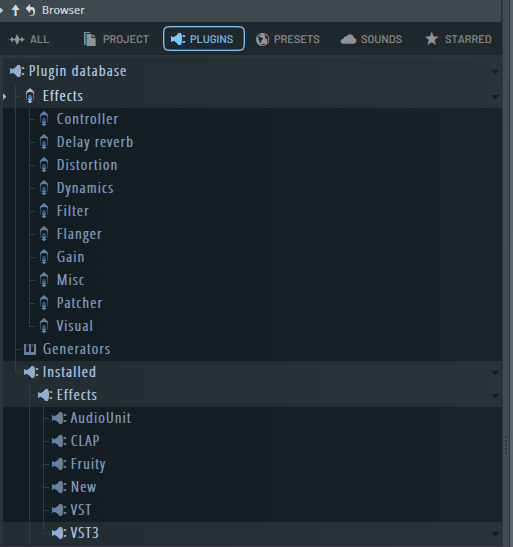
After getting a feel for the general workflow, I wanted to find and open a plugin. As a new user, locating the plugin type I wanted felt clear and intuitive.

After clicking on the browser icon, I found the plugin folder was organized clearly. I immediately knew how to find what I was looking for. The plugin database includes ‘Effects’ and ‘Generator’ folders.
Section 3: Playlist & MIDI Recording Friction
After several days of exploring FL Studio, I still haven’t successfully recorded MIDI from my keyboard. This has been my biggest friction point so far.
What I tried:
- Opened the Channel Rack, Mixer, and Playlist simultaneously
- Verified my MIDI keyboard was working (I could hear notes when playing)
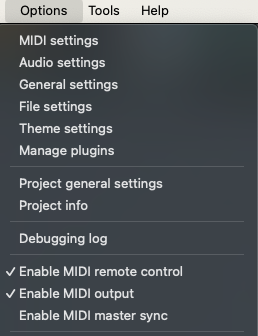
- Checked settings:
- Enable MIDI remote control
- Enable MIDI output
- Selected the target channel in the Channel Rack
- Armed disk recording in the Mixer
- Pressed Record and performed on the keyboard
Result:
No MIDI was recorded or played back.
I repeated this process multiple times:
- Tried different channels
- Adjusted mixer settings
- Enabled/disabled various options
Still no success capturing MIDI input.
What works:
- Creating MIDI patterns in the step sequencer
- Drawing MIDI in the Piano Roll
- Recording audio
What doesn’t:
Recording MIDI in real-time like in Logic or REAPER (arm → record → play → capture).
This could be:
- User error
- Hardware/driver issue
- Or a gap in understanding FL Studio’s workflow
This suggests a potential UX friction point.
Section 4: Channel Rack
When I first explored the Channel Rack, I didn’t realize it functions differently from tracks in other DAWs.
While it lets you manage and sequence channels, they must be routed to the Mixer to:
- Apply FX
- Mix linearly
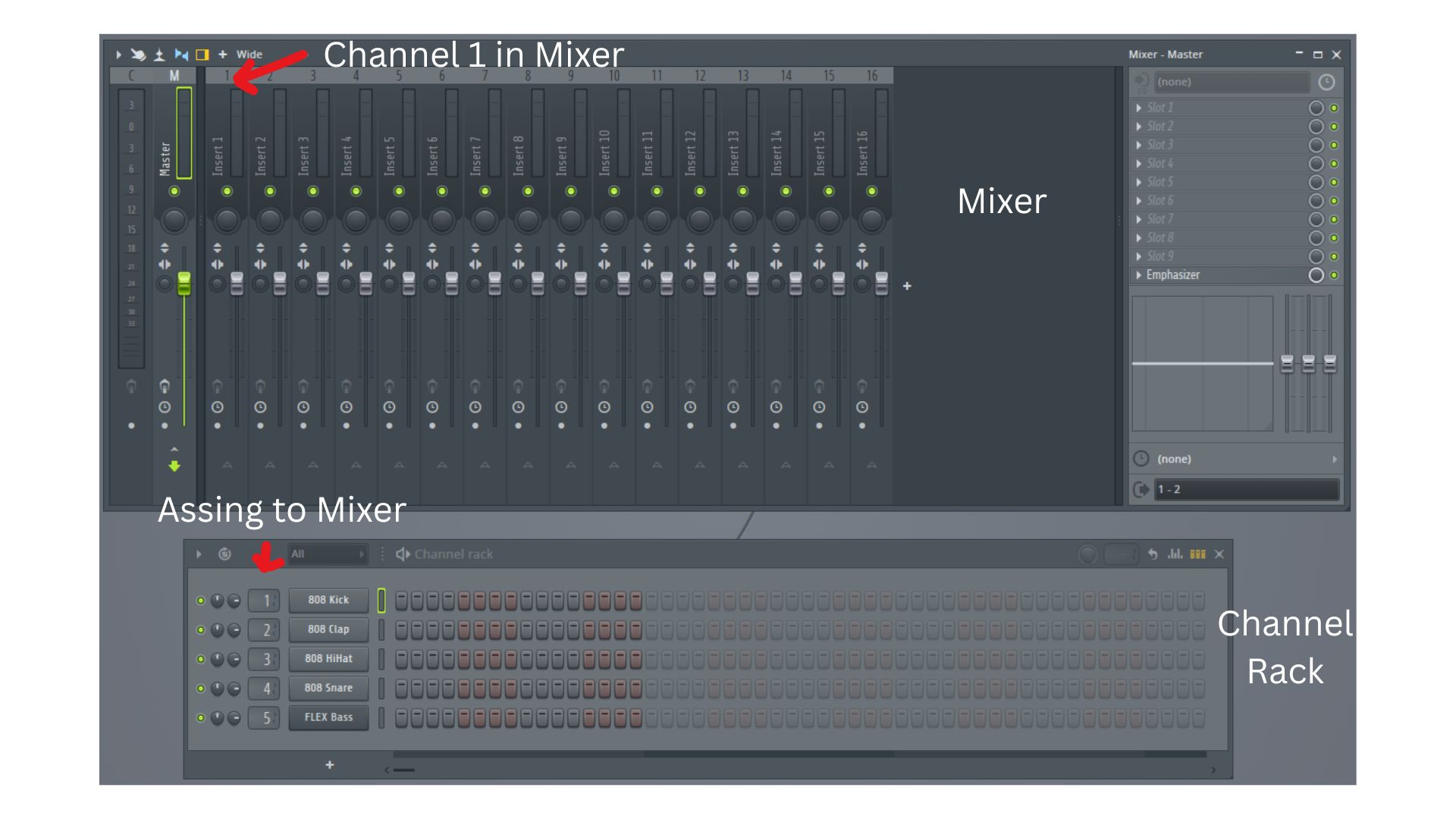
This is where I manage all of my channels.
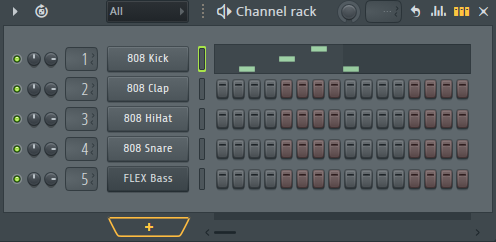
Adding a new channel is straightforward:
- Click the + icon
- Add audio, MIDI, or virtual instruments
Below the channel list is FL Studio’s step sequencer, one of its most recognizable features.
It allows for:
- Fast beat creation
- Grid-based sequencing
- Pattern-oriented workflow
No need for real-time performance to build rhythm.
Section 5: The Mixer
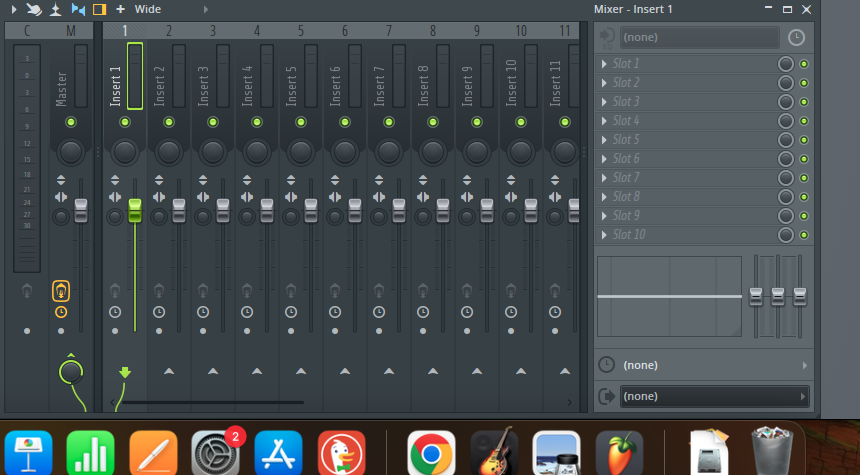
In the mixer console, I noticed the track latency button, which I haven’t used before. I’m currently experimenting to understand how it impacts timing and workflow.
When I first encountered the “Enable FX” button, I wasn’t sure how it worked. I later realized that it only functions once a plugin is loaded into the slot.
Loading FX was initially confusing:
- I expected to find plugin options directly in the Mixer panel
- The first menu didn’t show them
After further exploration:
- Clicking again revealed a second menu
- This included a “Load Plugin” option
Section 6: Technical Issues Encountered
Format-Specific Crash: Surge XT (VST3)
- FL Studio Version: 25.2.3.4889 (Trial, Apple Silicon)
- OS: macOS Sonoma 14.4
Issue: FL Studio crashes consistently when applying filters in the VST3 version of Surge XT.
Error:
EAccessViolation
Observation:
- The Audio Units (AU) version works without issues
- The problem appears isolated to VST3
Conclusion:
This suggests a VST3 bridge compatibility issue in FL Studio (trial version on Apple Silicon), rather than a problem with Surge XT itself.
Section 7: Final Thoughts
Exploring FL Studio showed me that a DAW workflow doesn’t need to be fixed — there are many valid approaches to creating music.
One feature I would like to see:
- The ability to minimize the main window instead of it always occupying the full screen
Aside from that, I enjoyed getting familiar with the fundamentals of FL Studio and understanding how its workflow differs from more traditional DAWs.
If you’re an audio plugin company looking for plugin QA, I can help.
Reach out at aaron@pluginproof.com